Take a card payment
Turn on online payments once. After that every invoice and deposit link lets the customer pay by card or bank, and the invoice marks itself paid.
1. Open Settings, then Payments
Only the owner sees this, and online payments need the Pro plan or higher. Under Accept customer payments, press Set up payments. If you already started, the button says Finish payment setup.
2. Finish setup with Stripe
Stripe, our payment partner, asks for your bank and a few details. It takes a few minutes and your customers never leave a page that is not yours. The card shows Active when you are ready. If Stripe is still reviewing, it says so; check back later. Your first payout can take 7 to 14 days.
3. Send an invoice
Send the invoice as usual. The customer opens the link and presses Pay. Until setup is finished, invoices show no Pay button.
If a customer pays you cash or check in the meantime, record it on the invoice and it marks paid just the same.
4. See the money
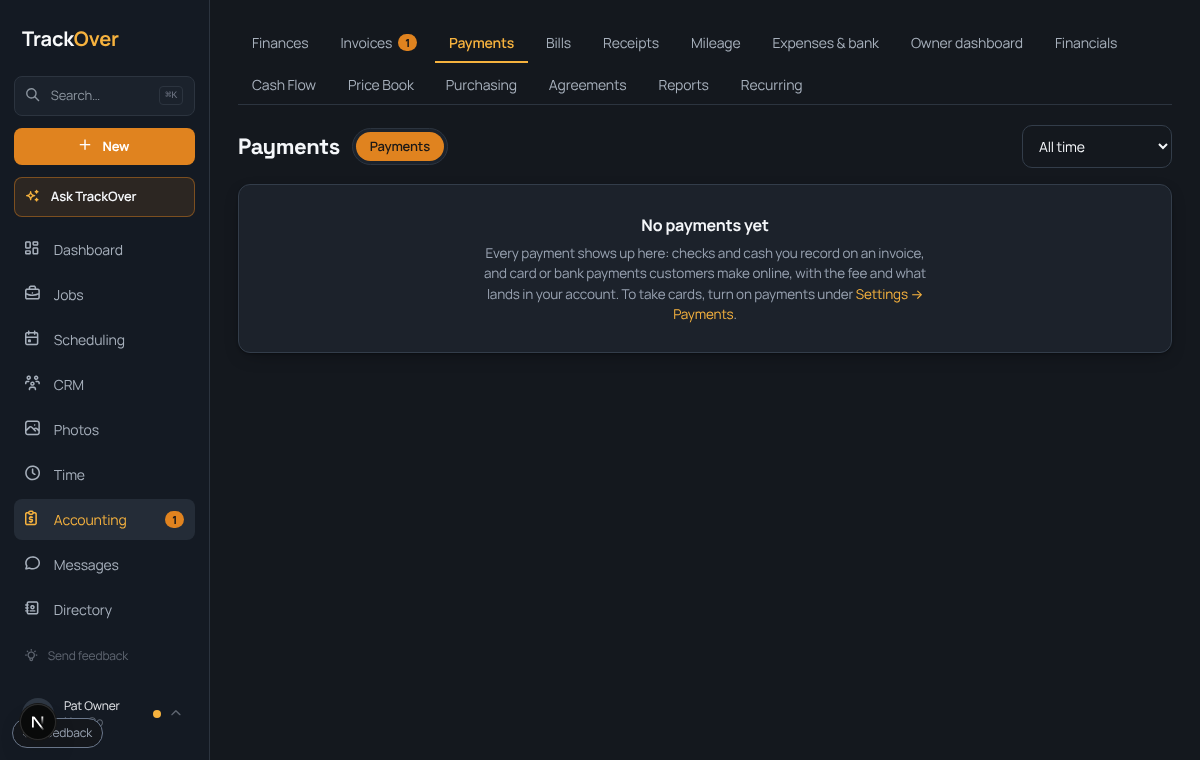
The Payments page lists every payment, with checks and cash you recorded too. Stripe pays out to your bank, usually in a couple of business days.
When a customer pays an invoice or an estimate deposit online, managers get a Payment received push in their own language. Tap it to open that invoice or estimate. If a bank payment fails, they get a separate Bank payment didn't go through push, and the invoice stays unpaid.
Pro tip: A customer can also pay from their portal page, and from a statement. See The customer portal and Send a statement.