Send an invoice
Turn a finished job into an invoice and send it. Any deposit already paid is taken off the total.
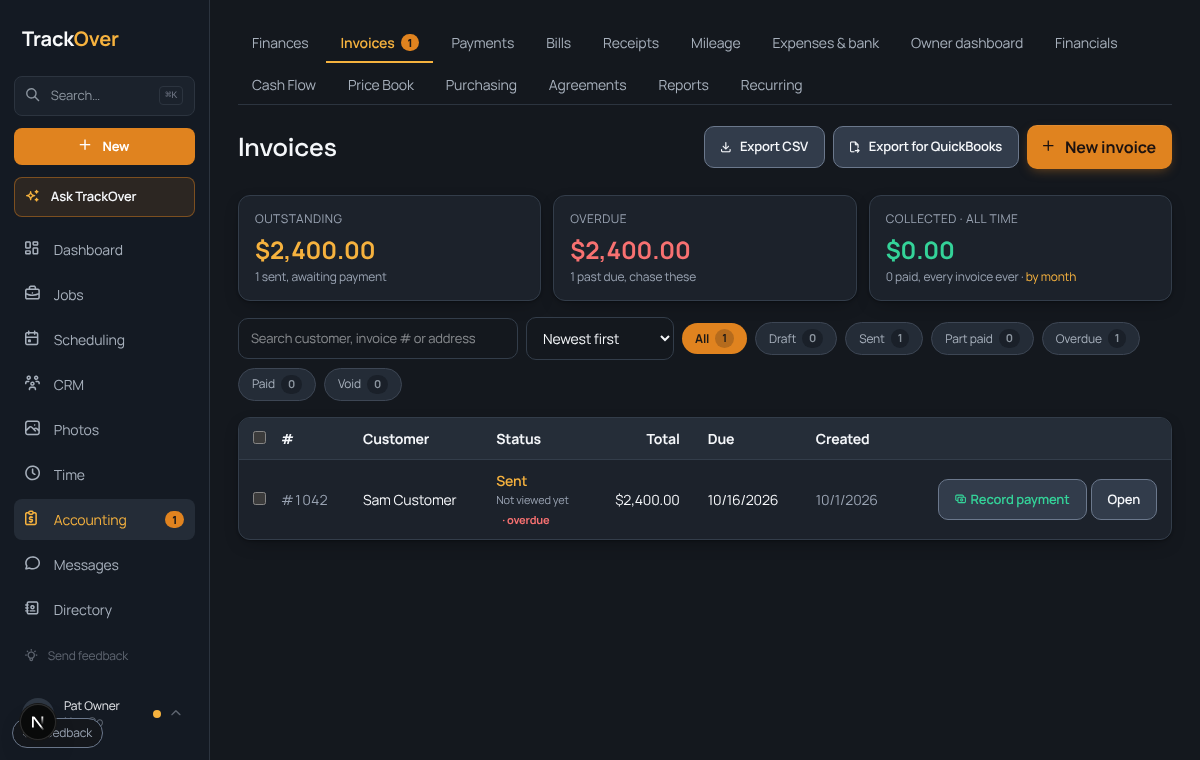
1. Create it from the job
Open the job. Once the job is closed, Create invoice is the big button at the top. Before that it is under More at the top of the job. The line items carry over, and so does any deposit already paid on the estimate. Or use New invoice on the Invoices page for a blank one.
A deposit paid online after the invoice was made is put on it for you. If TrackOver could not tell which invoice it belongs to, press Apply deposit on the Invoices page to put it on.
2. Check the lines and terms
Check the amounts, the tax and the due date. Part-way billing works too, so a long job pays you along the way.
3. Send invoice
Press Send invoice, check who it goes to, then press Send email. The customer gets a link to see it and pay. The list shows when they have viewed it.
4. Chase what is late
The Invoices page shows what is outstanding and overdue at the top. Filter by Overdue, Unpaid, Paid or Draft. Sent and Part paid are under More.
5. Paid by check or cash?
Press Record payment on the invoice so the balance is right.
6. Refunds and late fees
An invoice that was paid and then fully refunded shows as Refunded. It counts as settled, so it is not chased and not overdue. A late fee waits out your company holidays, so a closed office never costs the customer grace days. The fee line is written in the customer's language.
Pro tip: Press Export for QuickBooks on the Invoices page if your bookkeeper wants a file.