Schedule a job with a time
Put a job on a day, give it a start time and a length, and hand it to a crew. The crew sees it on their phone.
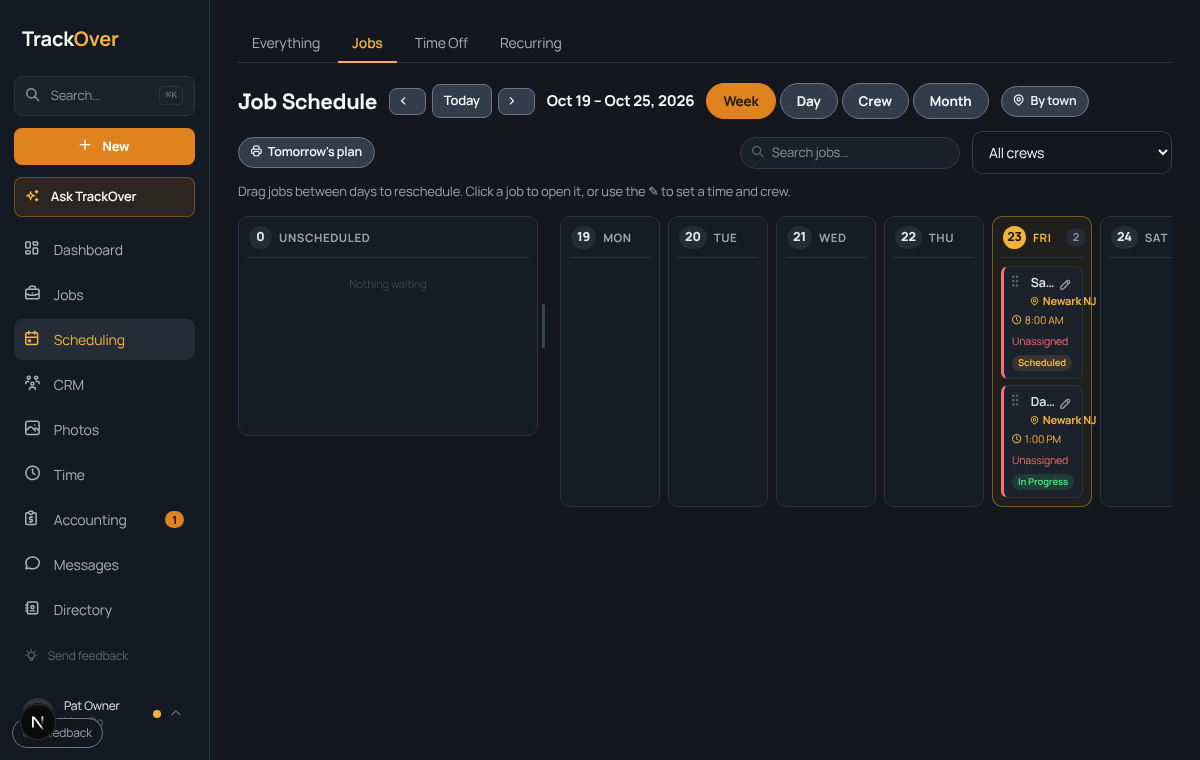
1. Open Scheduling
In the left menu, click Scheduling, then the Jobs tab. Jobs with no day yet wait in the Unscheduled column on the left. Switch between Today, Week, Day, Crew and Month at the top.
2. Drop the job on a day
Drag a job card onto the day you want. To change the day later, drag it again.
3. Set the time and crew
Click the pencil on the job card to set a time and crew. You can also open the job and use Start time, How long (1 hour, 2 hours, 4 hours, All day or Custom) and Scheduled for.
4. Check the day
The card shows the start time, the town and whether a crew is on it. A job with no crew says Unassigned in red, so nothing gets missed.
Today shows one row per crew, so you can see who has what. It needs a crew list: add crews on Team first. Jobs with no crew wait at the top under Needs a crew. Times show in full. Click By the hour to open the same day on the hour grid, on a computer or a phone. On a computer, the Day button opens that same grid. On a phone the grid is one column. To set a time there, tap the pencil on a job. Tap the job to open it.
Pro tip: If you pick no length, the schedule counts the job as 1 hour. Pick a length so the day shows what really fits.