Make an estimate with a deposit
Build a quote, ask for a deposit, send it, and when the customer signs it becomes a job. The deposit is taken off the final invoice for you.
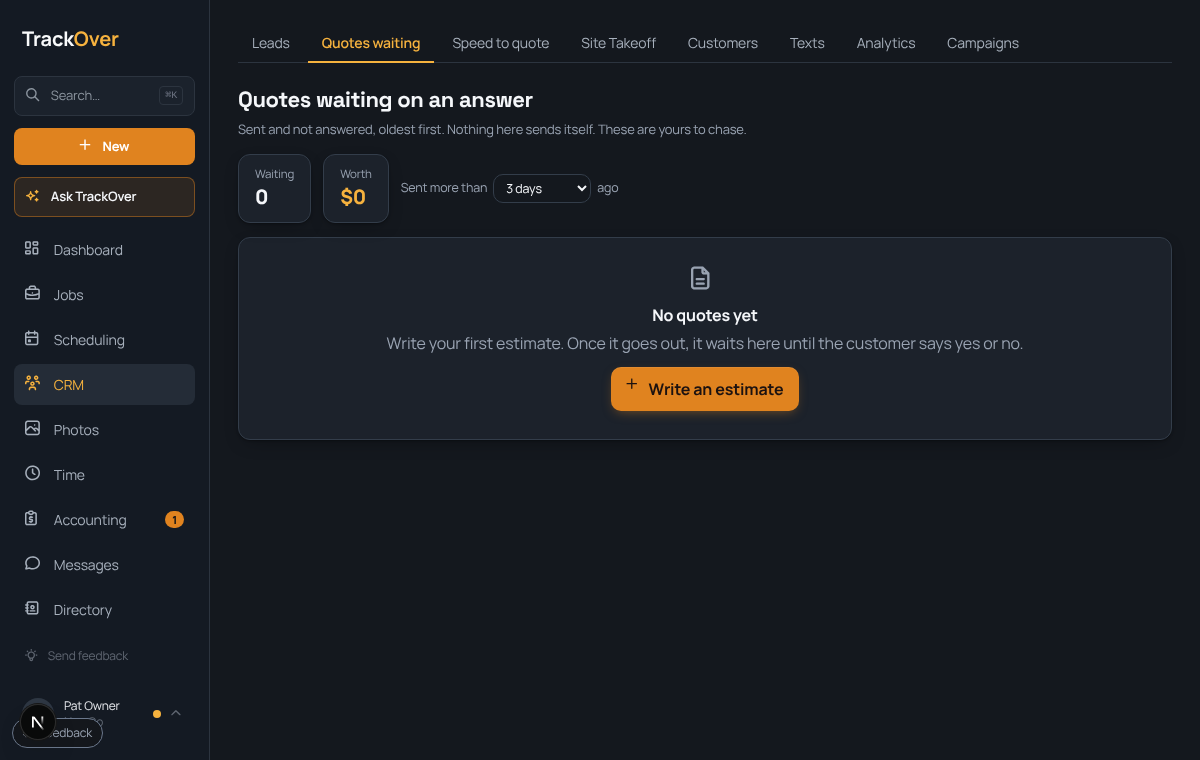
1. Start from the customer
In CRM, open the lead (or add one) and build the estimate from it. Add line items, or drop in things from your Price Book.
2. Ask for a deposit
Set a deposit as a percent or a flat amount. The customer pays it when they accept.
3. Send it
Press Send estimate. The customer gets a private link to read and sign. You can see when they opened it.
4. Watch for the yes
Sent estimates are listed on the Estimates page. Once they say yes, the lead shows whether the deposit is paid or still due. When they accept, press Convert to job at the top of the lead and it becomes a job with the address and line items carried over. Until the lead is won, Convert to job is under the ... menu.
5. Bill it later
When the work is done, open the job and press Create invoice (under More until the job is closed). The deposit is already taken off. See Send an invoice.
Pro tip: A quote nobody followed up on is the most common lost job. The Estimates page lists the ones that never came back.