Add your crew
Invite each person once. They tap a link, pick a password and land in your company with the role you chose.
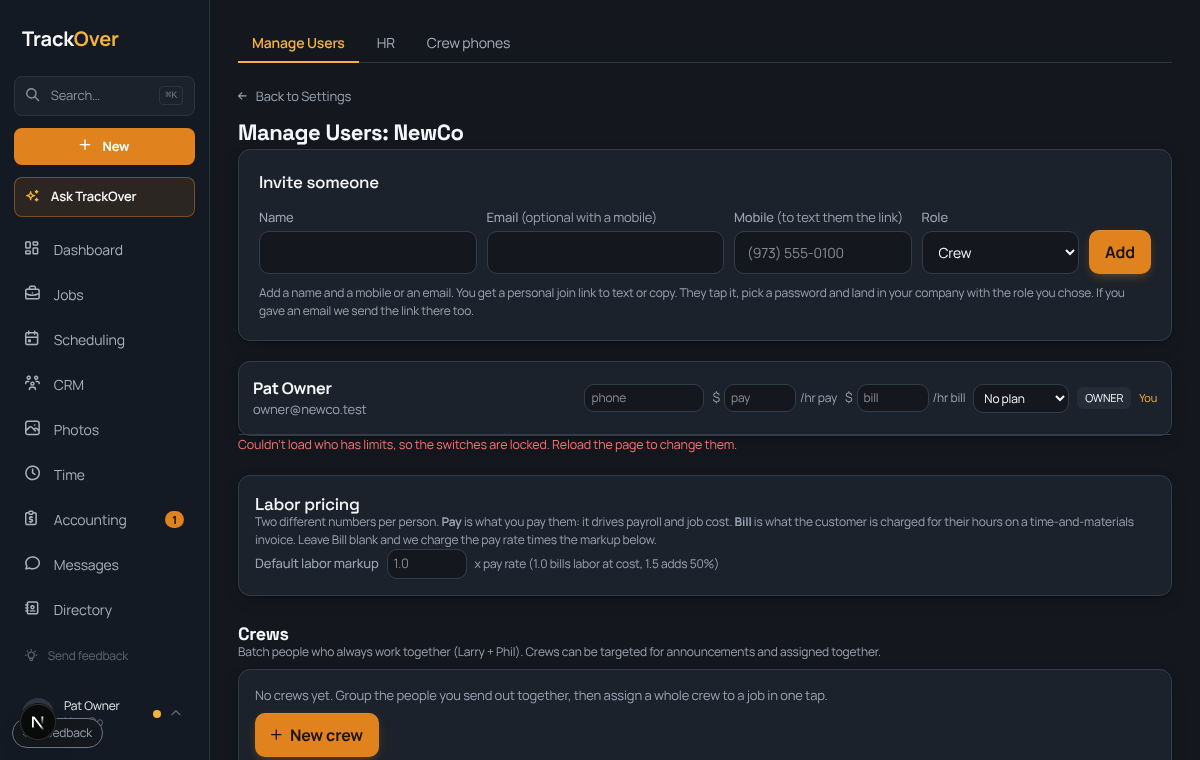
1. Open Manage Users
In the left menu, click HR & Users (under More if you don't see it). It opens on Manage Users. Owners can also open it from Settings, where it's called Team members.
2. Invite someone
Under Invite someone, add a name and a mobile or an email, pick a Role, and press Add. Use Crew for field people and Manager for the office. A manager can only add crew.
3. Send the link
You get a personal join link to text or copy. If you gave an email, the link goes there too. They tap it and choose a password.
4. Set pay rates (optional)
Next to each person, pay is what you pay them per hour. It drives payroll and job cost. bill is what the customer is charged on a time and materials invoice.
5. Group people who work together
Under Crews, press New crew to batch the people you send out together. Then assign the whole crew to a job in one tap.
Pro tip: Crew members only see their own work on the phone. They never see prices or other customers' invoices.