Import your customers
Bring your list over from a spreadsheet or another app. You see exactly what comes in before anything is saved, and you can undo the import for 24 hours.
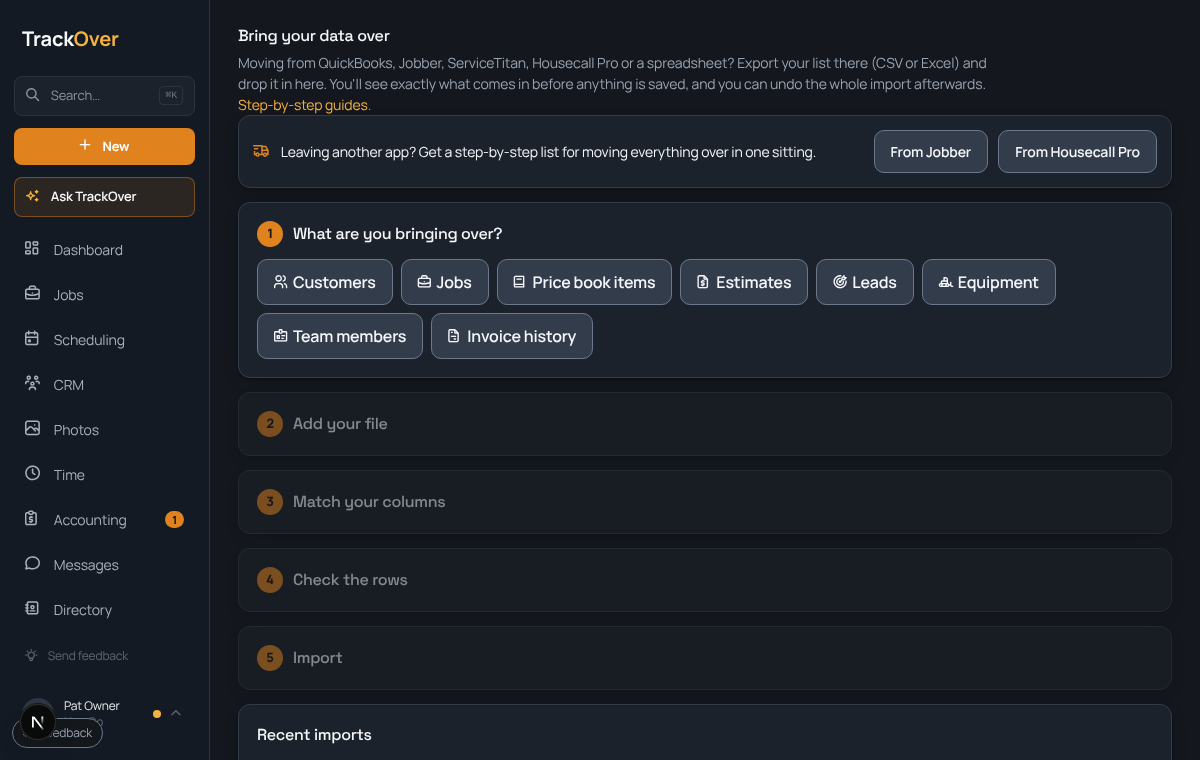
1. Export from where it lives
In QuickBooks, Jobber, Housecall Pro or your spreadsheet, export the list as a CSV or Excel file.
2. Open Import
On an empty Customers page, press Or import your customer list. Any other time, go to the import page (the Switching from another tool? card on your first-day list opens it too). Under What are you bringing over? choose Customers. The Import CSV button on the Customers page is the quick version: it brings only name, email, phone and notes, with no addresses and no undo.
3. Add your file
Drop the file in, or paste rows instead. Not sure how the file should look? Pick the tool you are leaving and press Download sample CSV.
4. Match your columns
Tell it which column is the name, phone and address. It guesses, and you can fix any it got wrong.
5. Check the rows, then import
Rows with a problem are flagged. Fix or skip them, then import. A customer you already have is not added twice. TrackOver matches on the TrackOver ID or the email (other emails on file count too), never on the name or a phone number alone. If the file has more for that customer, like extra phone numbers, a second email, tags or a lead source, those lines are added to the customer's notes and nothing else about them changes. Recent imports keeps each one so you can undo it for 24 hours. Undo removes only the new customers nobody has changed since. It does not take back lines that were added to the notes of customers you already had. Only owners and managers can import or undo.
Pro tip: Run a small file of five customers first. Check them, then import the rest.