Add a job
Use this when you already have the work and just need it on the books. If you are still quoting it, start in CRM and the job is made for you when the customer says yes.
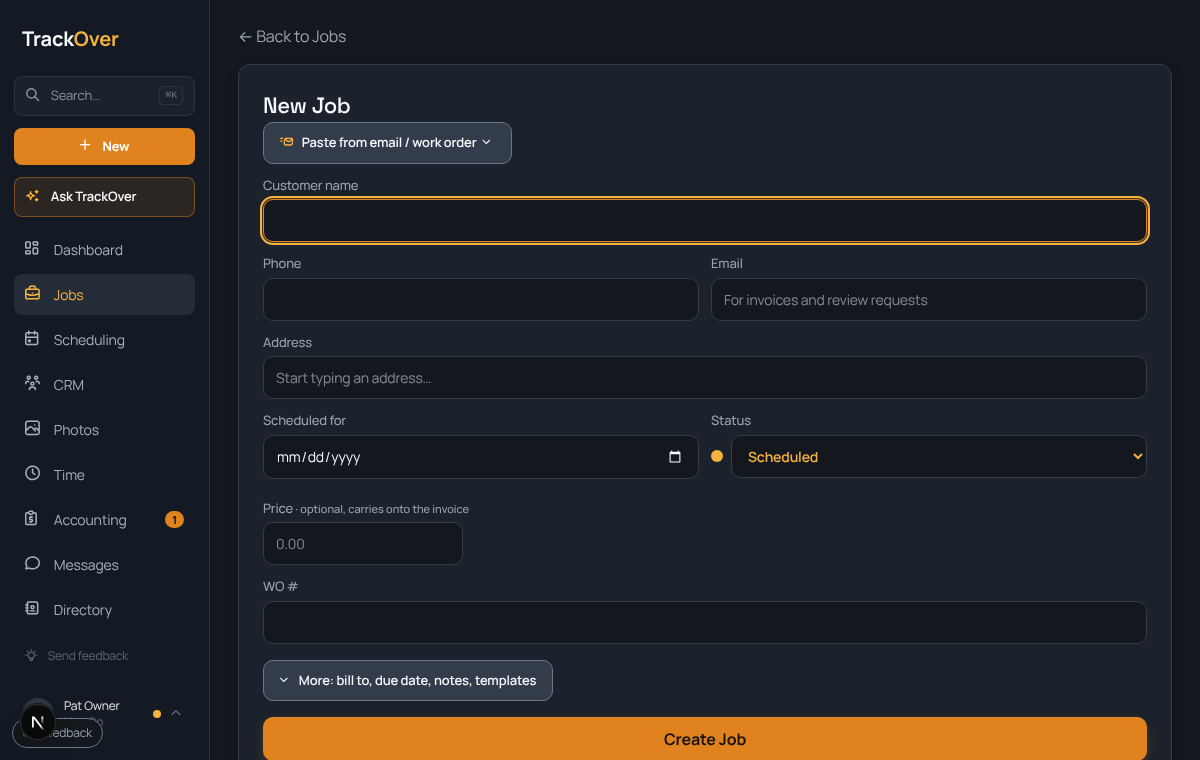
1. Open the new job form
Click Jobs in the menu, then New job. Or use the + New button at the top of the menu and pick New job.
2. Fill in who and where
Type the Customer name, then the Address. Email is optional, but add it if you want to send invoices and review requests later. Phone is under More details.
3. Pick a day and a price
Scheduled for puts it on the calendar. Leave it empty and the job waits in the Unscheduled column on the schedule. Price is optional and carries onto the invoice. Only owners and managers see it.
4. Press Create Job
The job opens. From there you add a start time, crew, photos and notes.
Pro tip: Repeat customers and handshake work are the best fit for Add a job. Anything you have to quote first should start in CRM, so you keep a follow-up list.